

Download Sparrow – free minimalist Gmail desktop client
Overview
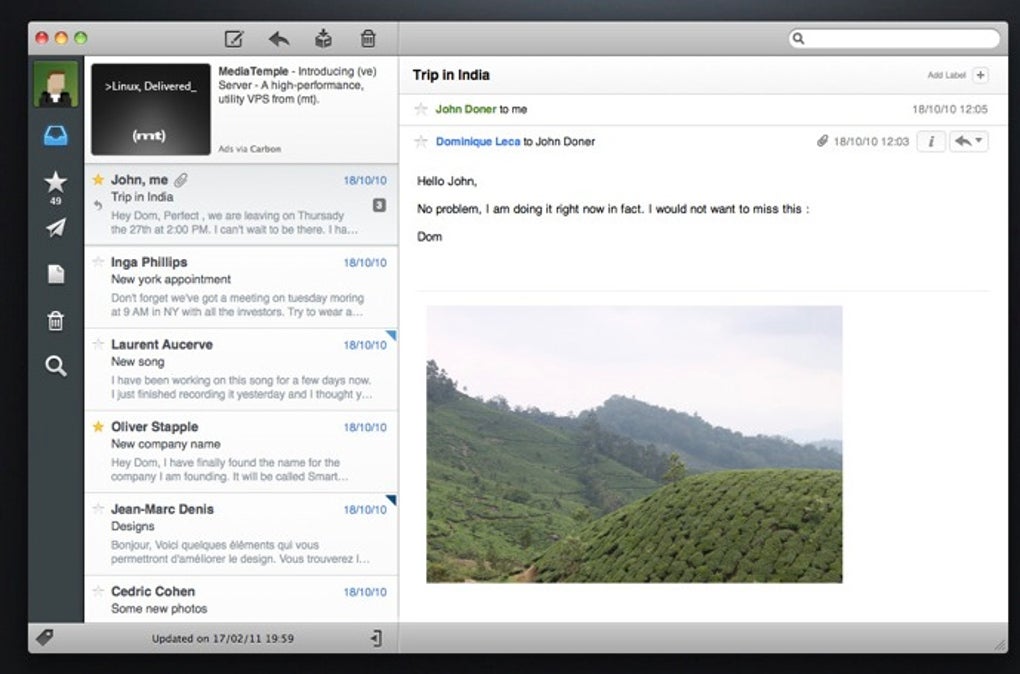
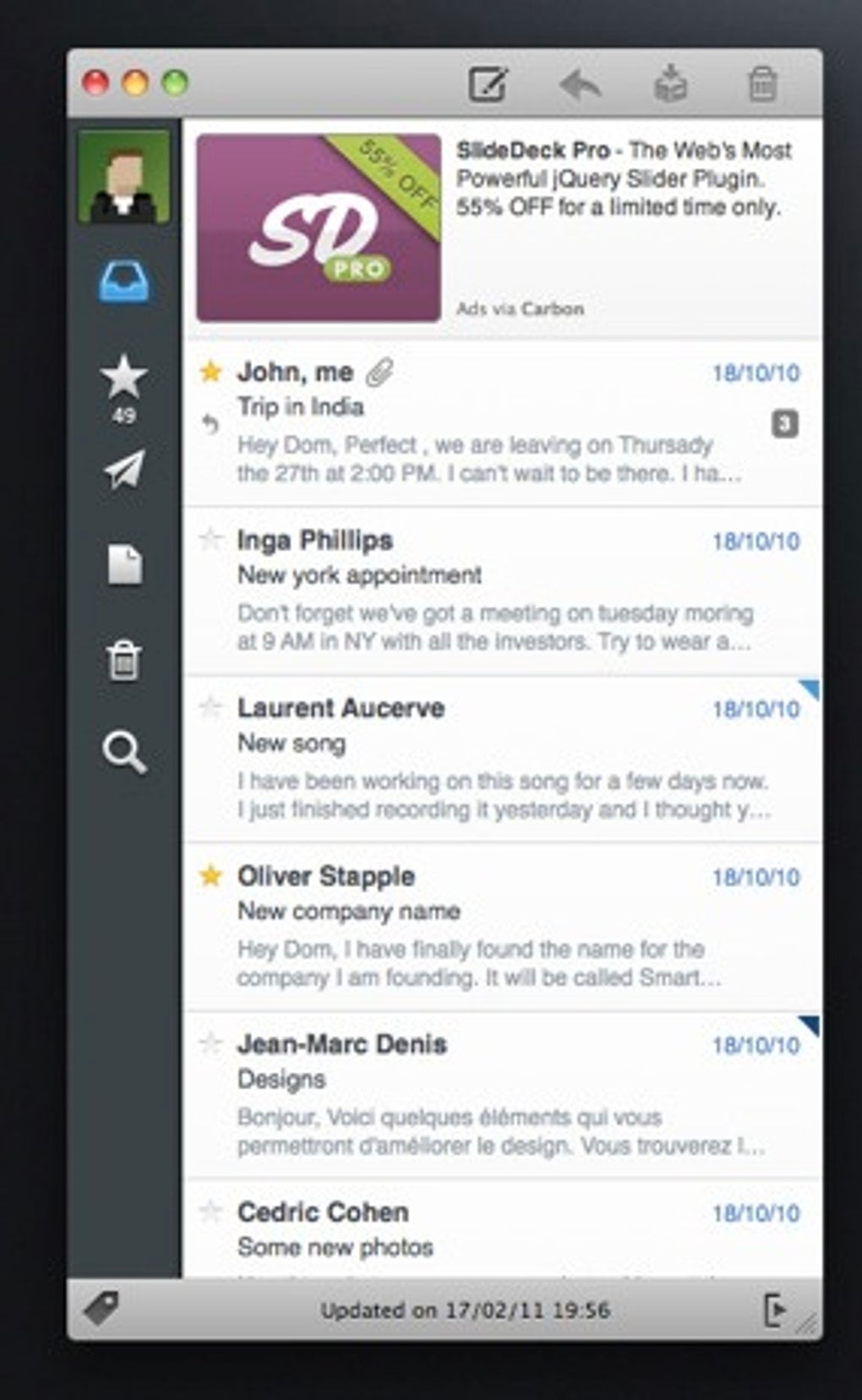
Sparrow is a free, minimalist desktop client designed exclusively for Gmail users who want a clean, distraction‑free way to manage their inbox without opening a web browser. Inspired by the sleek look of the old Tweetie Twitter client, Sparrow delivers a native Cocoa‑style interface for macOS that feels both familiar and modern. The app presents a compact message list in the main window, where each email is displayed as a short preview. Clicking a preview expands the message in place, while a secondary pane lets you open the full conversation in a separate window for deeper reading or replying.
Even though Sparrow Lite—the free version—limits you to a single Gmail account and shows occasional ads, the core experience remains surprisingly powerful. Unread mail counts are displayed in the Mac menu bar, giving you a quick glance at pending messages. Growl (or the built‑in macOS notification system) alerts you instantly when new mail arrives, so you never miss important communications. While the Lite edition lacks advanced Gmail features such as custom filters and signature editing, it still supports basic actions like archiving, labeling, and quick replies.
Because Sparrow runs as a native macOS app, it feels lighter on resources than a full‑blown web browser, yet users have reported occasional CPU spikes during heavy mail syncs. Overall, if you’re a Gmail power user looking for a sleek alternative to the browser interface, Sparrow offers a compelling blend of simplicity, speed, and visual polish—all at no cost.
Key Features
- Minimalist Design: A clean, distraction‑free UI modeled after classic Cocoa applications.
- Menu‑Bar Unread Counter: Real‑time badge showing the number of unread messages.
- Growl/macOS Notifications: Instant alerts for new mail without opening the app.
- Threaded View: Messages are displayed in conversation threads for easy context.
- Quick Reply & Archive: One‑click actions to respond or archive without leaving the inbox.
- Search Integration: Fast, client‑side search that filters results as you type.
- Full‑Screen & Split‑View Support: Works seamlessly with macOS multitasking features.
- Secure OAuth Authentication: Connects to Gmail using Google’s secure OAuth 2.0 flow.
- Lightweight Sync Engine: Periodic background syncing to keep your inbox up‑to‑date.
- Ad‑Supported Free Model: Access to all core functionality without paying, with unobtrusive ads.
Installation, Usage & Compatibility
Step‑by‑Step Installation
Getting Sparrow up and running is straightforward. First, visit the official Sparrow website and click the “Download for macOS” button. The installer is a standard .dmg file. Open the .dmg, drag the Sparrow icon into your Applications folder, and launch the app. macOS will prompt you to confirm that you want to open an application downloaded from the internet; click “Open.” The first launch triggers Google’s OAuth authentication screen where you’ll enter your Gmail credentials. Once authorized, Sparrow syncs your mailbox and displays the familiar preview list.
How to Use Sparrow Effectively
After login, the main window shows a list of recent conversations. Each line includes the sender, subject, and a short snippet of the latest message. Clicking a line expands the message inline, allowing you to read the content, view attachments, and reply without leaving the window. For longer threads, click the “Open in New Window” button in the upper‑right corner; this opens a dedicated conversation view where you can scroll through the entire history.
The left sidebar contains Gmail labels that you can click to filter the inbox. Dragging an email onto a label adds it to that category instantly. Quick actions are available via right‑click context menus—archive, mark as read/unread, delete, or move to a different label. Keyboard shortcuts (⌘N for new mail, ⌘R for reply, ⌘U for mark unread) speed up workflow for power users.
System Requirements & Compatibility
Sparrow is built for macOS 10.13 (High Sierra) and later. It takes advantage of the latest Cocoa APIs, meaning it runs natively on both Intel‑based Macs and Apple Silicon (M1/M2) without Rosetta translation. While there is currently no Windows, Linux, Android, or iOS version, the macOS client delivers a responsive experience across all recent hardware configurations. Minimum requirements include 512 MB of RAM (though 1 GB is recommended) and at least 50 MB of free disk space for the application and local cache.
Because Sparrow relies on Google’s OAuth 2.0, it works with any Gmail account—personal, G Suite, or Google Workspace—provided two‑factor authentication is enabled or an app‑specific password is generated if you use legacy security settings.
Pros, Cons & Frequently Asked Questions
Pros
- Elegant, clutter‑free UI that focuses on reading and replying.
- Free to use with only occasional, non‑intrusive ads.
- Native macOS performance; integrates with menu bar and notifications.
- Quick actions and keyboard shortcuts boost productivity.
- Secure OAuth authentication eliminates the need to store passwords.
Cons
- Limited to a single Gmail account in the Lite version.
- Missing advanced Gmail features such as custom filters and signature editing.
- Occasional CPU spikes during large sync operations.
- No Windows, Linux, Android, or iOS client available.
- Ads, while infrequent, can be distracting for some users.
FAQ
Can I add more than one Gmail account?
In Sparrow Lite you are limited to a single Gmail account. If you need multi‑account support, you must upgrade to the full (paid) version or run separate instances of the app.
Does Sparrow store my email passwords?
No. Sparrow uses Google’s OAuth 2.0 authentication, which means your credentials are never stored locally. The app only retains an access token that can be revoked from your Google account settings.
Are there any hidden fees?
Sparrow Lite is completely free. The only revenue source is the occasional ad displayed within the interface. Upgrading to the full version removes ads and adds multi‑account support for a one‑time purchase.
How does Sparrow handle attachments?
Attachments appear as clickable icons within the preview pane. Clicking an attachment opens it with the default macOS application for that file type, or you can right‑click to save it to a chosen folder.
Is Sparrow compatible with Apple Silicon Macs?
Yes. The latest builds are universal binaries, meaning they run natively on both Intel and Apple Silicon (M1/M2) Macs without performance penalties.
Overall Verdict: Sparrow Lite delivers a polished, focused Gmail experience for macOS users who value simplicity over extensive feature sets. While the single‑account limitation and occasional ads keep it from being a perfect solution, its native performance, clean UI, and free price tag make it a worthwhile addition to any Gmail power‑user’s toolkit.
Conclusion & Call to Action
When it comes to desktop email clients, many options sacrifice speed for features or charge hefty subscription fees for basic functionality. Sparrow takes a different route: it offers a sleek, ad‑supported, free client that feels right at home on macOS, complete with menu‑bar notifications, Growl alerts, and a minimalist design that keeps you focused on the conversation at hand.
If you’re a Gmail user who spends most of your day on a Mac and you’re tired of juggling multiple browser tabs, give Sparrow Lite a try. The installation process is a breeze, the UI is intuitive, and the core mail actions are lightning‑fast. Should you eventually need multi‑account support or want to remove ads, the upgrade path is clear and reasonably priced.
Ready to streamline your Gmail workflow? Click the download button below, install Sparrow, and experience a cleaner inbox today. Your next email could be just a click away—without the clutter of a web browser.







